UX/UI Design — Academic Project

Madrid te
Acompaña

Redesigning a civic app to bridge the gap between elderly citizens in Madrid and volunteers — reducing digital barriers, loneliness, and friction in a service that matters.

UX Research Accessibility Mobile UX Figma Social Impact Usability Testing
12 wk Duration
Academic Project Team
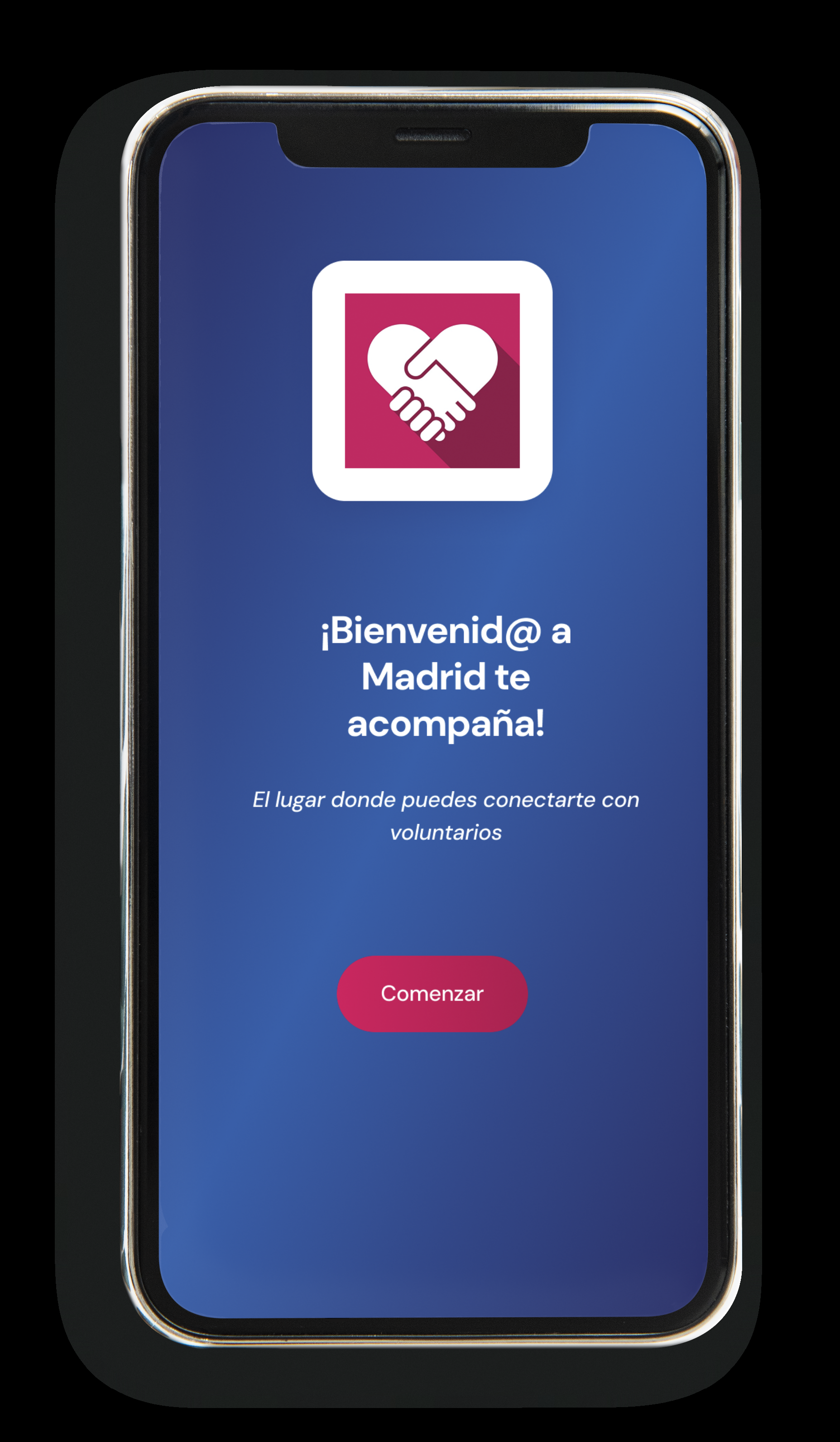
Madrid te Acompaña — app welcome screen
01 — Overview

The Challenge

Undesired loneliness among people over 65 is one of the most pressing social challenges in Madrid. The city's existing "Madrid te Acompaña" app connects elderly residents with volunteers for daily activities, medical appointments, and social interaction — but its current interface creates barriers instead of removing them: small typography, hard-to-see buttons, confusing navigation, and a fundamental uncertainty about when and how to reach a volunteer.

"¿Cómo podríamos mejorar la interacción entre voluntarios y personas mayores de 65 años, mediante la aplicación, sin que su uso les resulte complejo?"
HMW Question — Madrid te Acompaña, 2025

The Solution

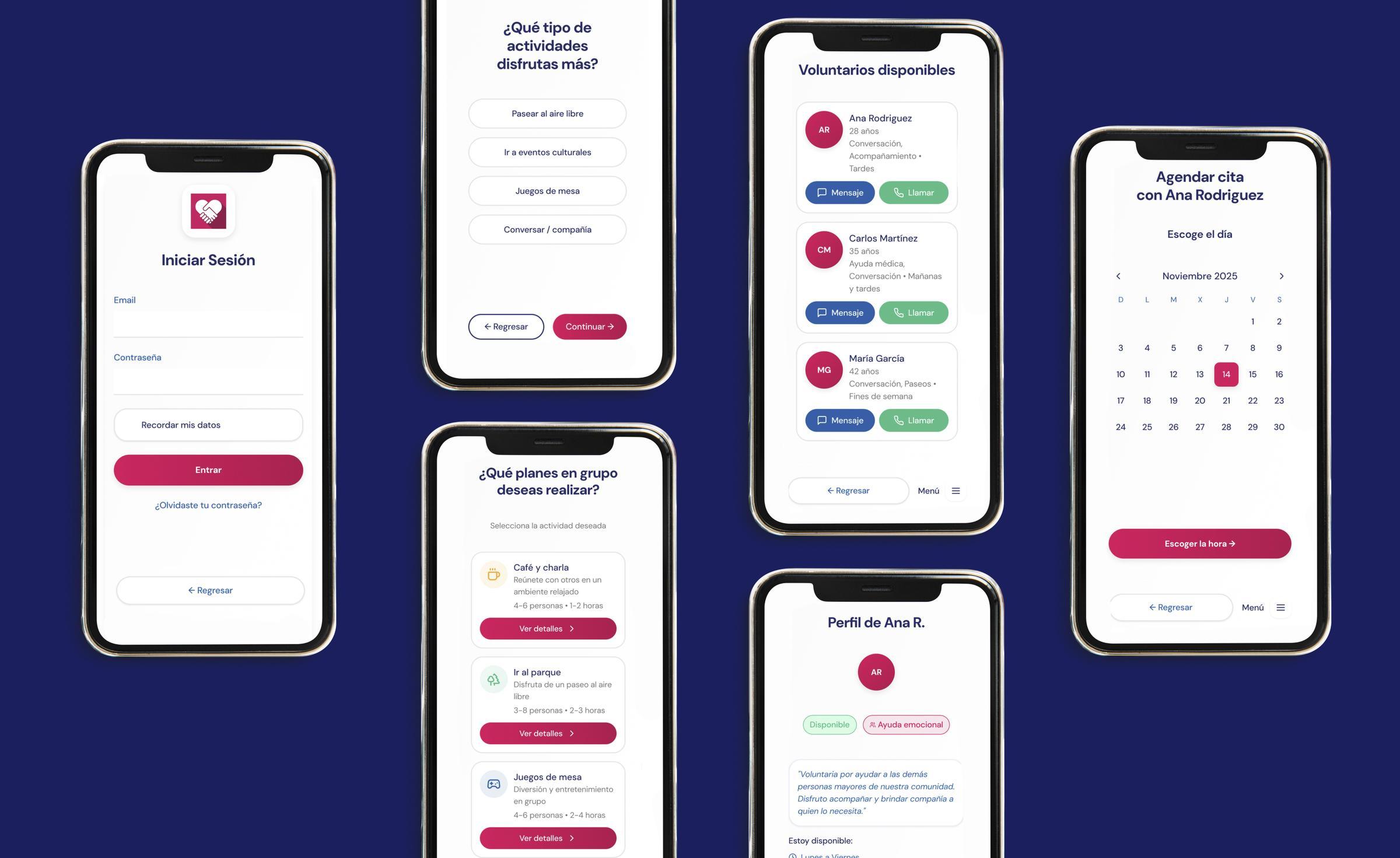
A complete accessibility-first redesign of the app, grounded in real field research with users over 65. The new experience prioritises extreme legibility, large touch targets, simplified navigation, and multiple contact modalities — ensuring the technology adapts to the user, not the other way around.

The redesign introduces interest-based volunteer matching, a streamlined appointment flow, group activity booking, and a transparent communication system — transforming the app from a help-request tool into a genuine platform for connection and community belonging.

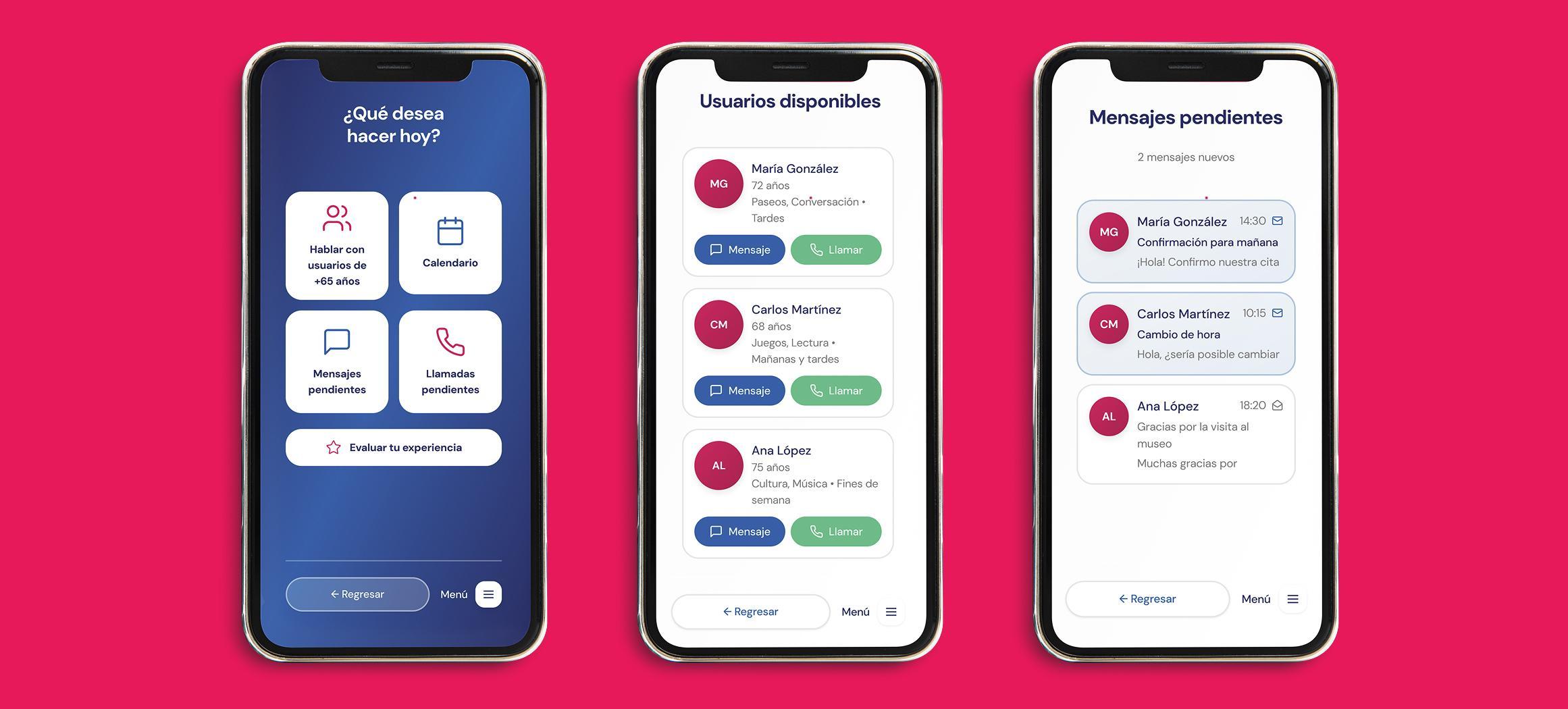
Madrid te Acompaña — app screens overview
02 — Research
Mixed Methods UX Research

Understanding the 65+ experience with technology

Research combined a citizen survey targeting elderly users, Maslow's hierarchy applied to digital accessibility needs, benchmarking of comparable services, and a collaborative affinity mapping session across the full team.

65+ Primary user group — concentrated in the 76–80 age range, highest loneliness risk
100% of surveyed users said they did NOT know when they could contact their volunteer
#1 Most reported barrier: reading small letters — not rejection of technology
6 users Tested the live prototype in the field — ages 66 to 78 — across Madrid and Barcelona
Method 01

Citizen Survey

Designed to understand communication habits, technology barriers, and usability needs of seniors receiving volunteer support. Key findings: despite daily phone use, the barrier is interface design — not tech rejection. Users want large buttons, large text, and clarity about when to contact their volunteer.

Method 02

Maslow's Hierarchy

Applied to the 65+ context to identify critical design priorities. Security and belonging are the two most urgent levels for this user group: they need to feel safe using the app (not fear making mistakes) and connected to a broader community. Esteem needs follow — recognition that their time and requests matter.

Method 03

Benchmarking

Compared Madrid te Acompaña against Papa Pals (US), Fundación Amigos de los Mayores, and Decide Madrid. Key insight: most comparable services are offline, institutional, or non-digital. Papa Pals demonstrates that a simple, human platform can successfully scale volunteer-senior connections without replacing human warmth.

User Insight

01

Security over features

The barrier is fear of making mistakes, not rejection of technology. Seniors need clear, direct interfaces that guide without jargon.

02

One-touch communication

Most users communicate by phone. A single-tap call must be the primary action — multi-step flows create anxiety and abandonment.

03

Volunteer availability

100% of users didn't know when to contact their volunteer. Availability must be visible from the home screen.

Design Requirements

A

Easy to see

High contrast, large text by default. Small letters were the #1 barrier — bold typography is a structural requirement.

B

Easy to touch

56px minimum buttons with generous spacing — tolerates imprecise taps from users with reduced dexterity.

C

Easy to use

Linear, predictable navigation. No hidden menus. Every screen answers: what am I doing here, what's next?

D

Flexible communication

Call, video, text, voice — ordered by familiarity, not technological complexity.

"Las personas mayores de Madrid sienten inseguridad al utilizar aplicaciones digitales porque temen equivocarse o no comprender los pasos. Necesitan interfaces que comuniquen de forma clara, directa y humana, evitando símbolos confusos."
Core Insight — Madrid te Acompaña Research, 2025
03 — Process
Design Process

From field research to validated prototype

A collaborative six-member team process — each member contributing individual research, wireframes, and flows that were then synthesised into a unified, tested product.

01

Field survey & diary studies

Survey targeting 65+ users on communication habits, technology comfort, and desired app features. Complemented by user diaries revealing the emotional texture of everyday loneliness.

02

Affinity map & insight synthesis

Collaborative FigJam session where each team member brought findings. Key insights: fear of error outweighs tech rejection; the volunteer availability gap is a primary friction point.

03

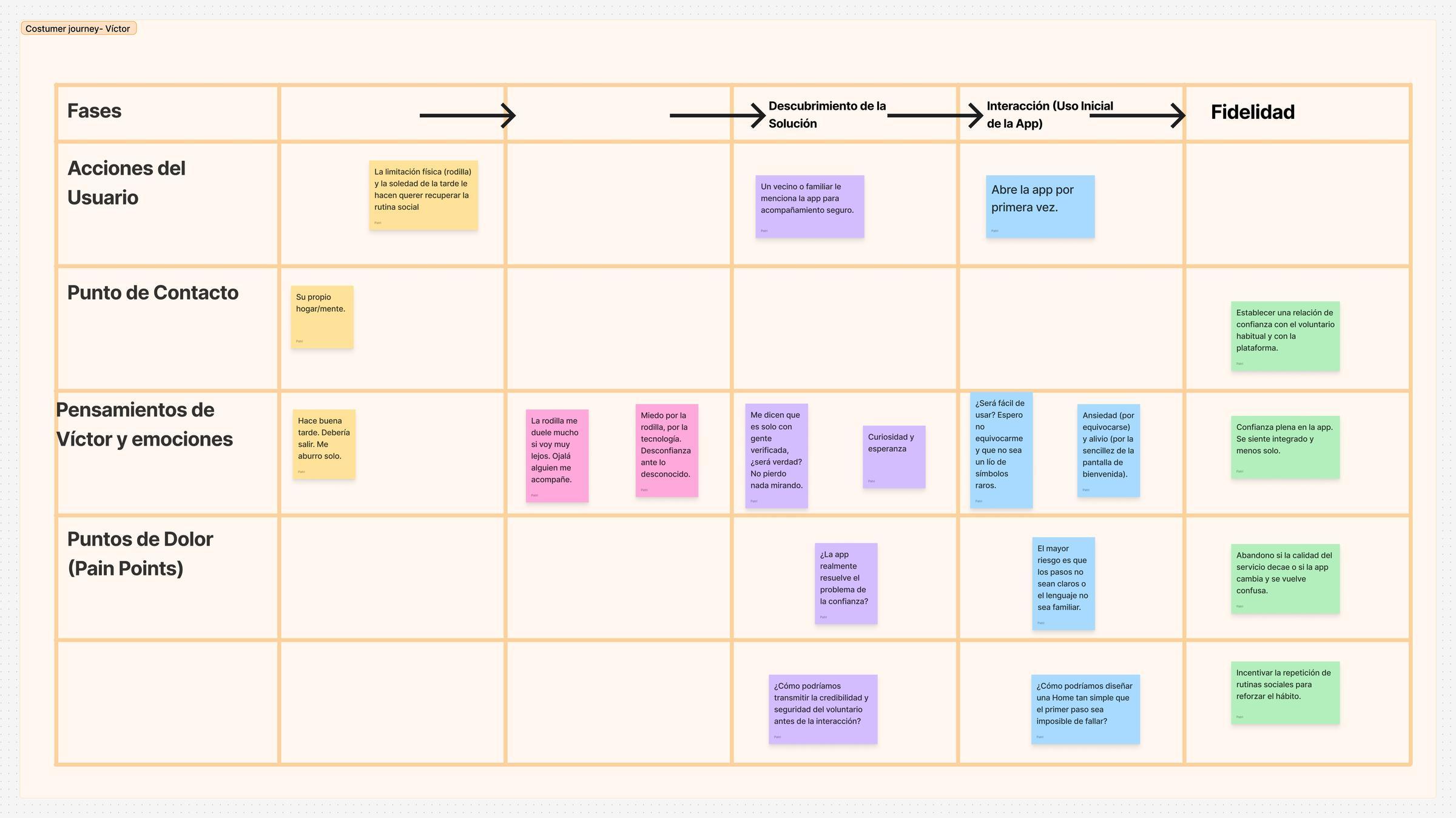
User personas & empathy maps

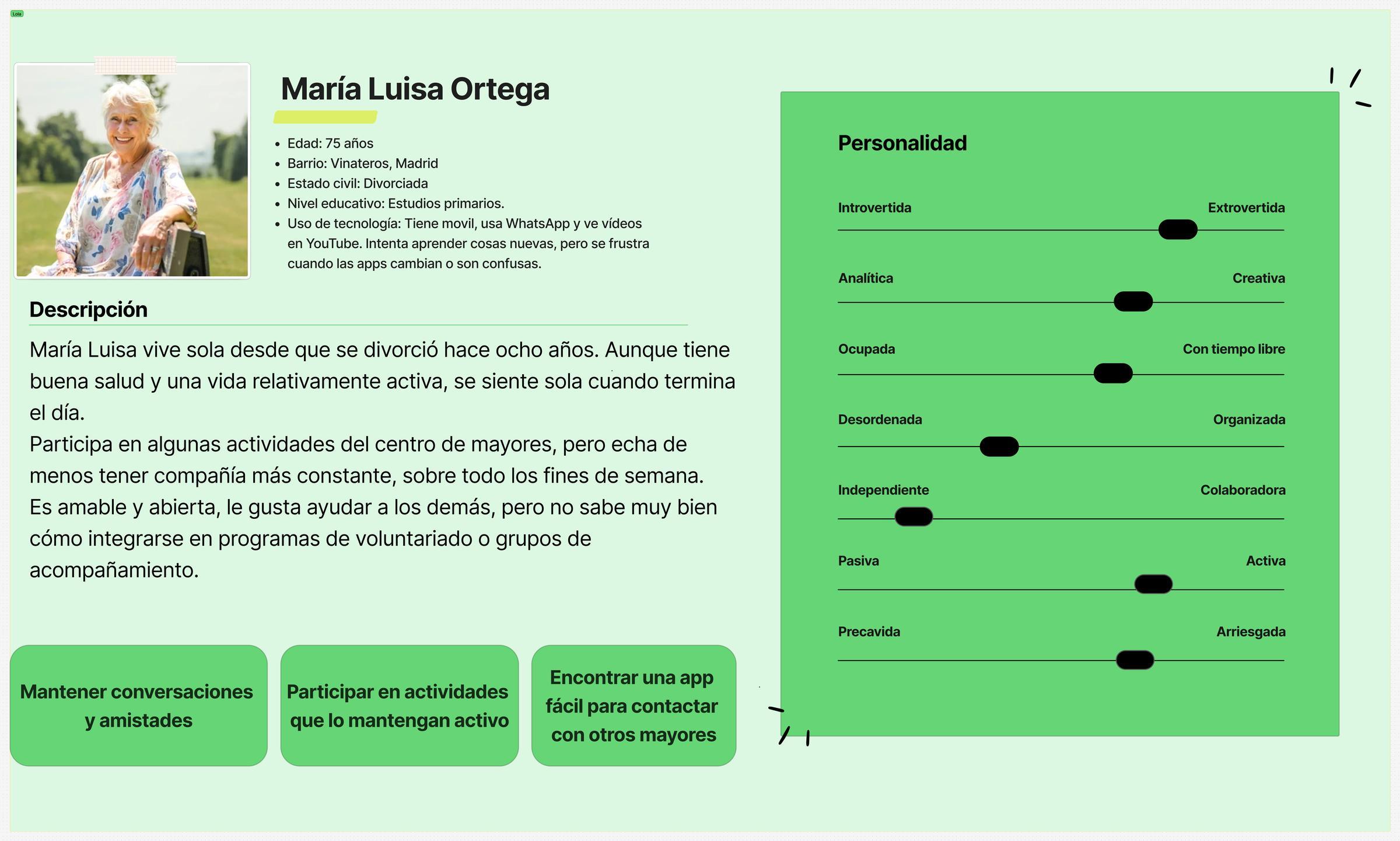
Seven personas created across four elderly users and three volunteers. Selected María Luisa Ortega as the primary persona — concentrating the core needs and tech behaviours of the target group.

Madrid te Acompaña — User persona
Madrid te Acompaña — Customer journey map
04

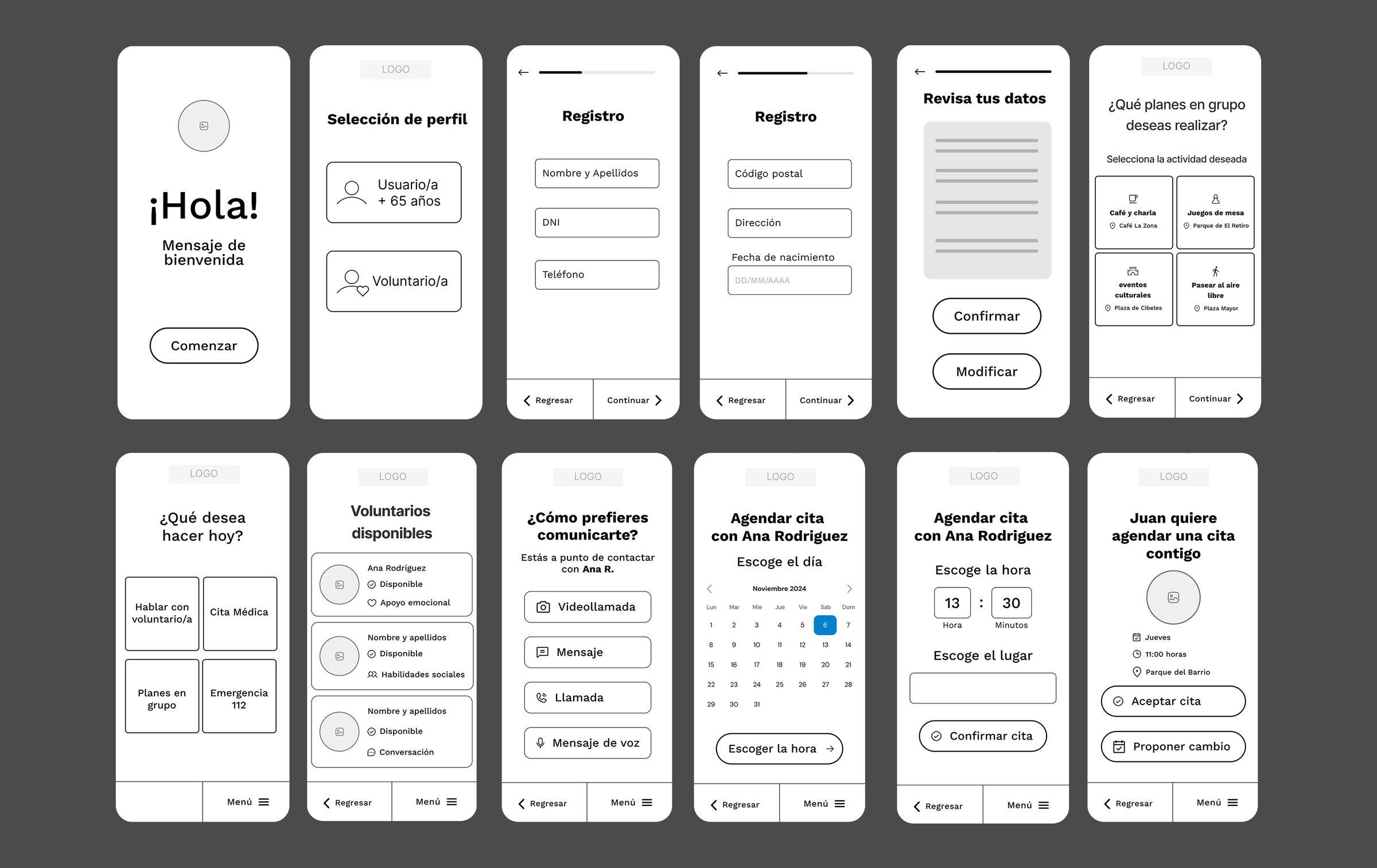
Low-fidelity prototypes

Each team member individually designed a key screen proposal: onboarding, home, volunteer list, video call, appointment booking, and activity selection. This divergent phase surfaced 6 different interaction approaches to the same problem before converging on the best elements.

05

User flow consolidation

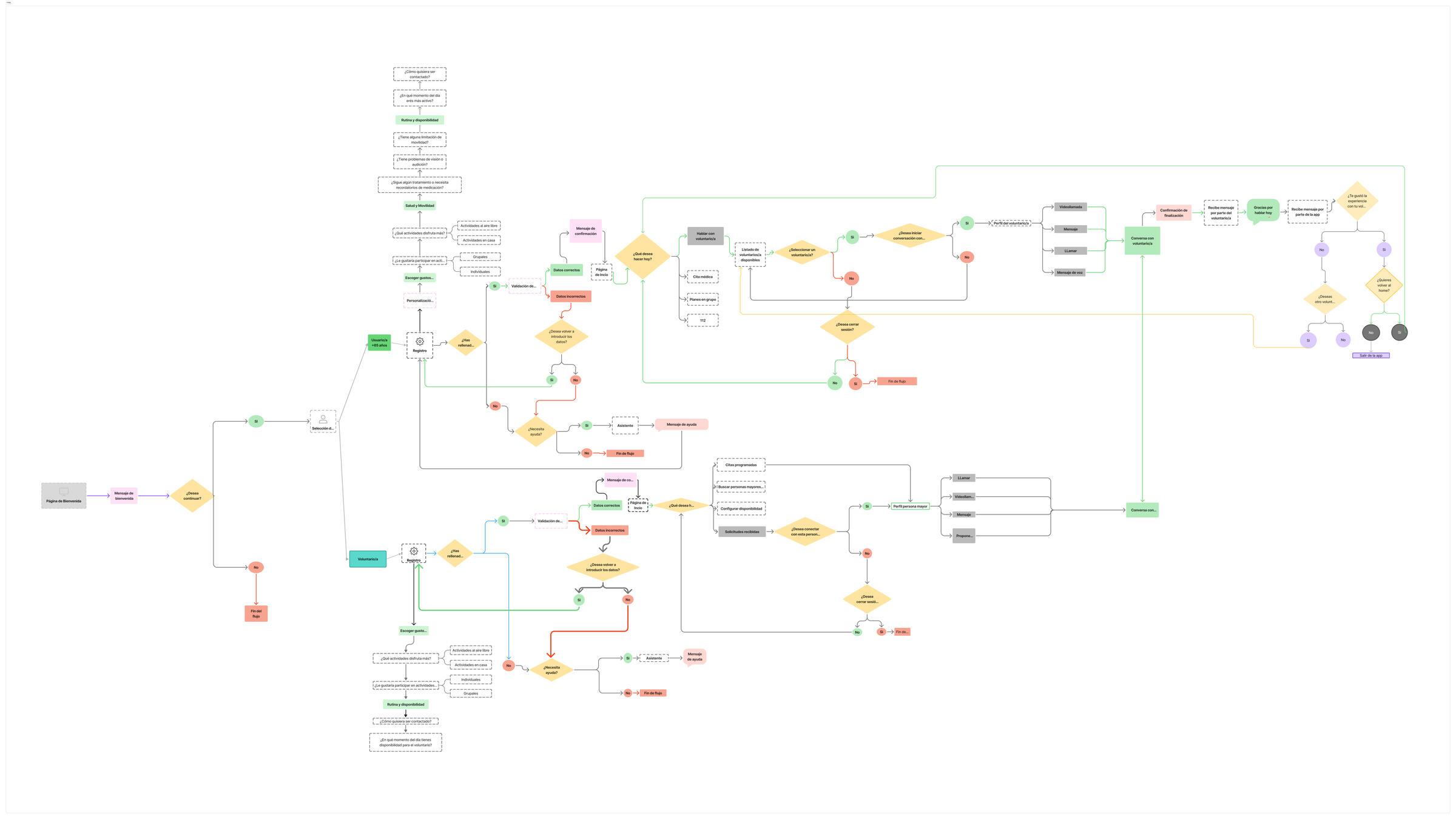
Individual flows merged into a single validated flow: Onboarding → Profile selection → Interest personalisation → Home → Volunteer selection → Contact (call/video/message) → Appointment scheduling → Experience rating. Volunteer route runs in parallel with its own registration and availability settings.

06

Wireframes & high-fidelity prototype

Screen-by-screen wireframes built per team member, then unified into a navigable Figma prototype. Designed around four accessibility principles: large text, big buttons, single-task screens, and explicit state feedback at every action. Registration split across multiple short screens to avoid cognitive overload.

Madrid te Acompaña — User flow diagram
Madrid te Acompaña — Low-fidelity prototype screens
07

Usability testing — field sessions

Real users tested the prototype in their natural environments — streets, community centres, homes. Participants: Andrés (69, Madrid), María del Carmen (66, Madrid), Enrique (69, Barcelona), Javier (78, Toledo), Carlos (77), Pedro (46 — volunteer). Each completed a specific task scenario evaluated against Nielsen's Heuristics.

08

Heuristic analysis & findings

Tasks evaluated: registration, interest personalisation, group activity booking, volunteer selection, appointment scheduling, session close. All 6 users completed their assigned tasks without critical errors, blocks, or external assistance. María del Carmen's session close took 15 seconds — she said "Ha sido facilito."

09

Iterations post-testing

Three key improvements surfaced: (1) feedback icons needed visible selected states before the "submit" action; (2) the "remember login" checkbox needed a deselect option; (3) a "view booked activities" screen was added to the group plans flow. All other flows confirmed as stable and ready for the next iteration phase.

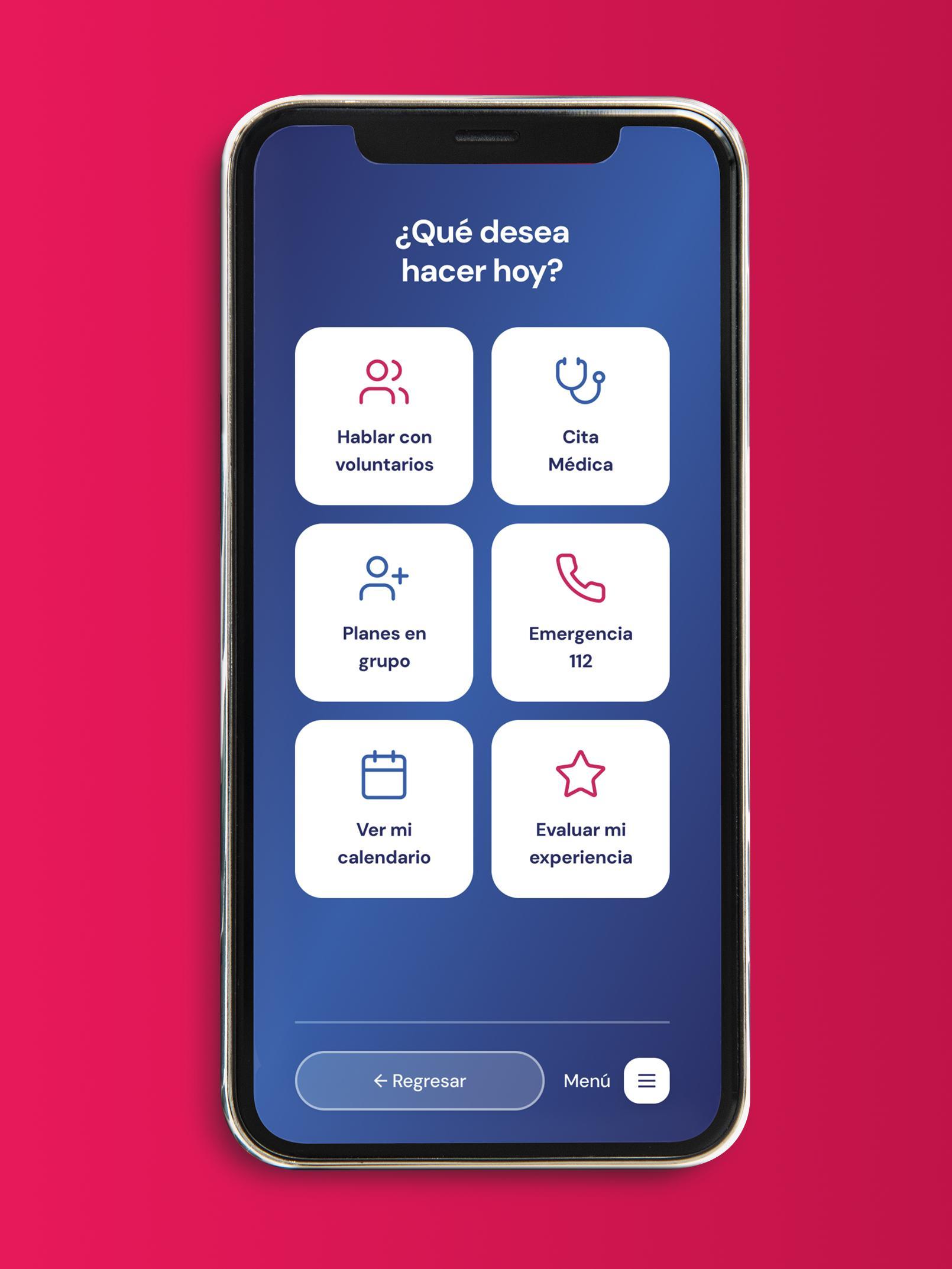
Madrid te Acompaña — Home screen
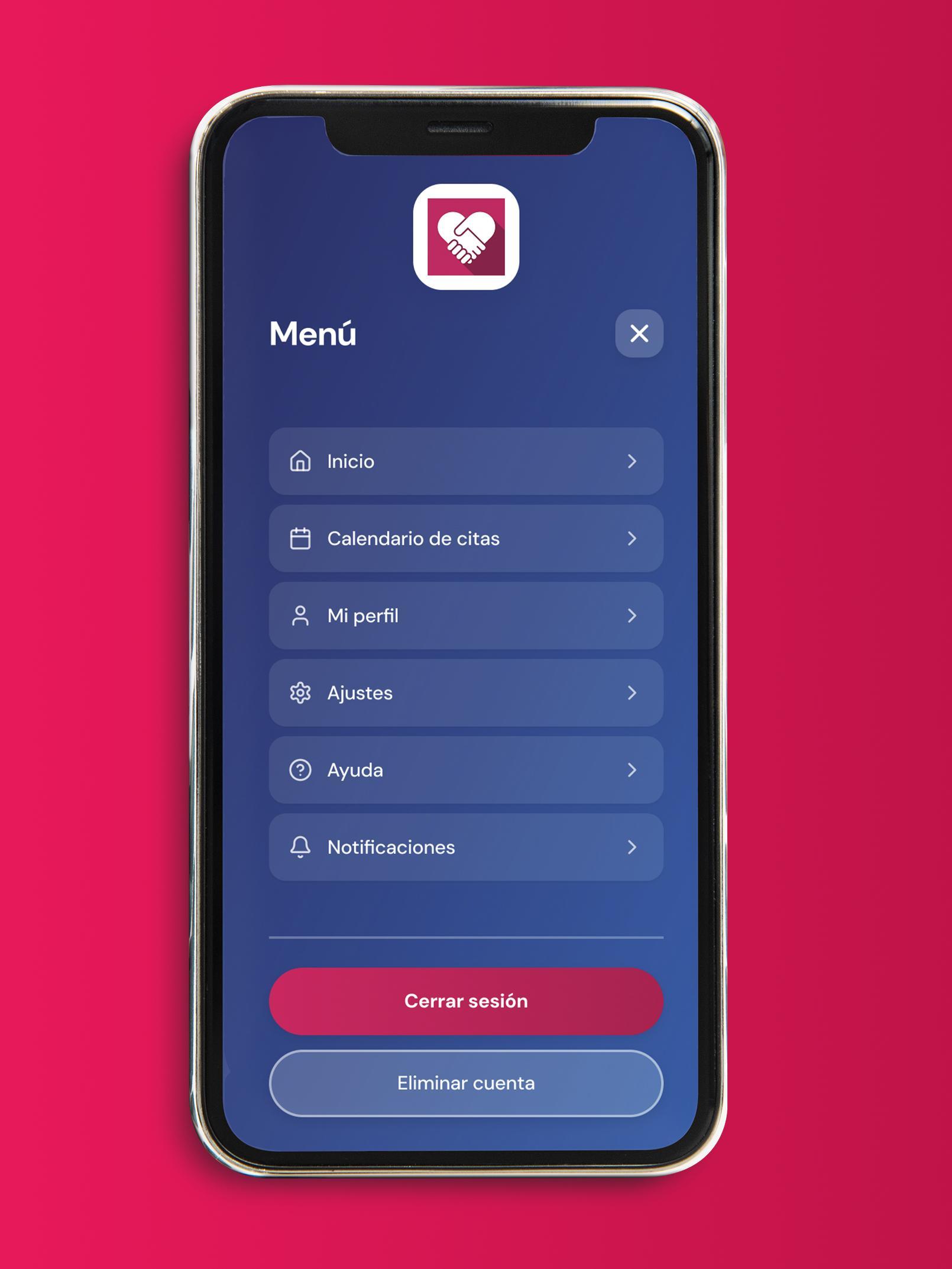
Madrid te Acompaña — Menu screen
Madrid te Acompaña — App screens banner
04 — Design
Design System — Guía de Estilo

Visual Language

The visual system for Madrid te Acompaña is built around trust, warmth, and radical accessibility. DM Sans as the brand typeface, a high-contrast primary palette, a 4-column mobile-first grid, and large-scale touch components — every decision is grounded in the real needs of users over 65.

Typeface

DM Sans

Brand typeface — flat corners, high legibility, projects reliability and warmth. Only Regular (400) and Bold (700) weights used across all screens.

Grid

4 columns / mobile-first

Designed exclusively for mobile. Consistent column rhythm across all screens, with generous touch zones and breathing room.

Icons

Lucide — 24px

Clean, recognisable icon set. Used at 24px for maximum legibility at a glance — essential for users with vision difficulties.

Components

56px buttons

Large primary buttons (56px), medium (48px), small (40px). Generous touch targets that tolerate imprecise taps from users with reduced dexterity.

Colour System

Primary — Rosa institucional

Primary #E8195A
Primary Hover #C01448
Primary Light #F04678

Secondary — Azul institucional

Secondary #0057A8
Secondary Hover #004385
Secondary Light #1A6EBF

Tertiary — Navy

Tertiary #1B1F5E
Tertiary Hover #141841
Headers, dark text

Neutral Scale

#FFF
#FAFAFA
#F5F5F5
#E5E5E5
#D4D4D4
#A3A3A3
#737373
#525252
#404040
#262626
#171717

Semantic Colours

Success
Success Light
Warning
Warning Light
Error
Error Light
Info
Info Light

Typography — DM Sans

H1 Page Title 28px Bold 700
H2 Section Header 20px Semibold 600
H3 Subsection 16px Semibold 600
Body Body regular — main reading text across all screens 16px Regular 400
Body Med Body medium — labels, secondary emphasis 16px Bold 700
05 — Outcomes

Measured results

Validated through field usability testing with real users over 65, conducted across Madrid, Toledo, and Barcelona.

6/6 Users completed their assigned tasks without critical errors, blocks, or external assistance
15 s Time to complete session close flow — "Ha sido facilito" said the participant
0 Critical navigation errors detected across registration, booking, volunteer selection, and appointment flows
3 Targeted iterations implemented post-testing — all minor UX improvements, no structural redesigns needed
"Ha sido facilito."
María del Carmen, 66 años, Madrid — usability test participant after completing the session close flow

Accessibility over features

The barrier isn't rejection of technology — it's unusable design. Large text, visible buttons, and single-task screens remove the fear of making mistakes. When those elements are in place, users over 65 can navigate complex flows confidently and independently.

Feedback must be explicit and immediate

Icons need clear selected states before any submit action — users must see confirmation that their input was registered before moving forward. One test participant selected a feedback face but saw no visual change, creating uncertainty about whether the tap had worked.

Sequential screens outperform dense forms

Splitting registration across multiple short screens — each with a single task — dramatically reduced cognitive load and errors. Users who finished registration said they felt "in control" and didn't experience the confusion typical of long, scrollable forms.